As a WordPress enthusiast, I’m often asked which hosting provider I’d recommend. The honest answer is “several of them, for different reasons.” But five features make Kinsta my go-to platform over the others — and they’re the clearest way to compare Kinsta vs WP Engine.
I’ve built hundreds of WordPress sites over 15 years and used just about every hosting approach along the way — starting on cPanel, moving to Plesk, then finally to managed WordPress hosting. I currently manage over 100 WordPress websites spread across Kinsta, Flywheel, and WP Engine. Each platform has a unique feature set I lean on for different needs. Here’s why Kinsta is my default.
Every site is a fresh server (with a unique IP)
This is by far the most underrated feature of Kinsta. On shared hosting, all your sites share the same resources — and not just with each other, but with strangers’ sites too.
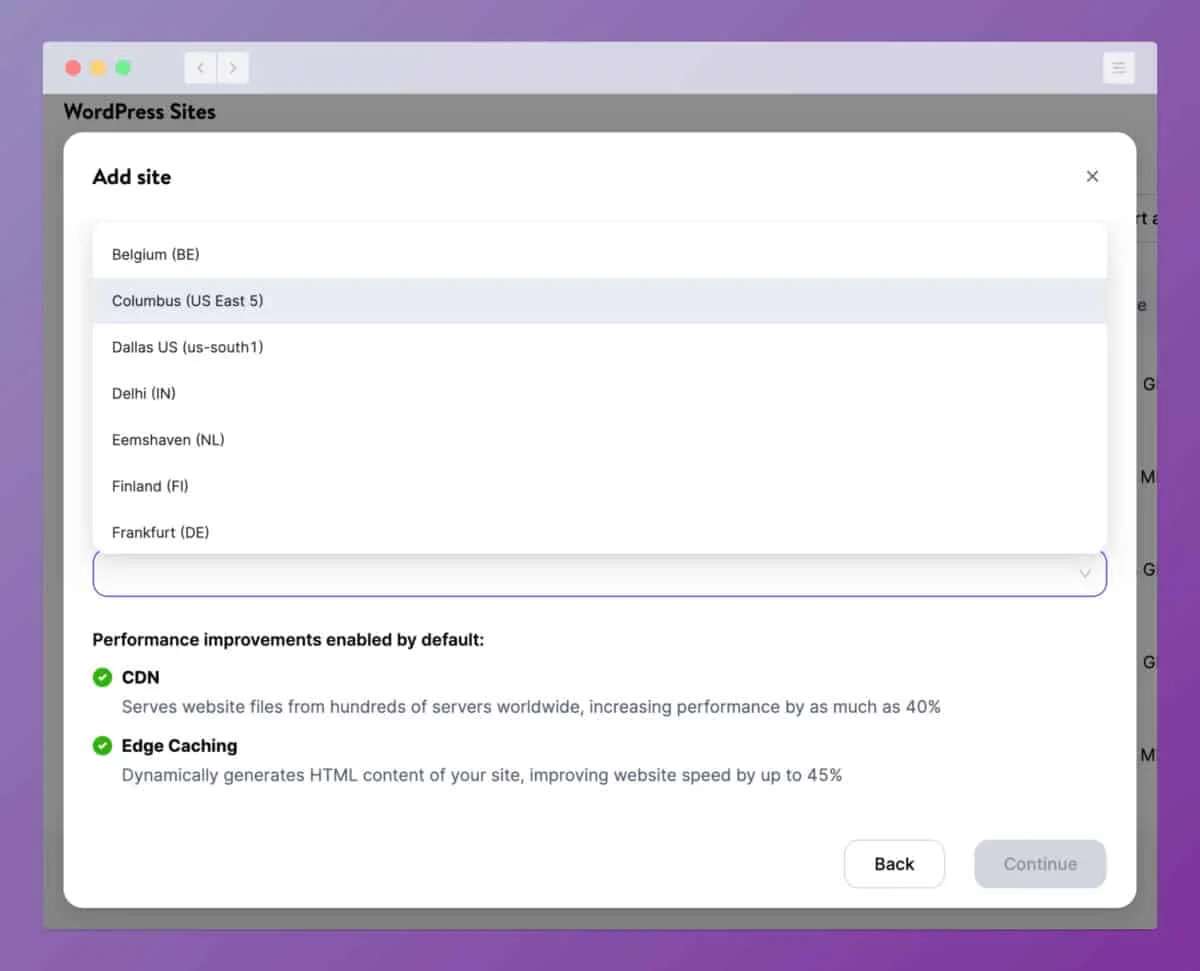
Every Kinsta site you spin up is a separate instance with its own IP address. You pick the data center, and Kinsta fires up a new container there. On a 5-site plan you can spread those sites across different data centers in any combination. This site runs in Montreal; most of my others sit in North Virginia or South Carolina.
I love that every site is its own install in its own region. I never have to worry about a site’s IP getting blocked because some neighbour on the box was spammy.
Under the hood Kinsta runs on Google Cloud Platform, and it uses containers to keep every WordPress install isolated. Because each site is its own container, a resource-hungry site doesn’t drag down the load time of the others. Keeping sites fast and secure is always my top priority.
Search and replace
I often need to find a word or a URL and replace it across an entire WordPress site. That’s no small task in WordPress — content is scattered across multiple tables, and drafts and revisions have to be updated too.
 Find and replace any word or phrase across the whole database.
Kinsta’s search-and-replace tool solves this in seconds. You enter the text to search for and choose whether to do a straight search or replace strings as they’re found. It runs across the database and reports how many records were updated. It makes migrating a site to a new domain a breeze.
I’d always run a backup before a search-and-replace — if you mistype something, you can restore to the point right before the command ran.
Control over the PHP engine
This one is for the developers and hard-core enthusiasts.
Sometimes I need full control over the PHP version. Because every install is its own container, I can set the PHP version per site. New sites default to PHP 8.0; if you’re using a theme framework like Sage, you’ll want to bump it to 8.1. You change it under Tools → PHP Engine → Modify.
 Change your PHP version with a click.
Cloudflare and CDN tools
Every host claims their CDN is the fastest and most advanced in the world. Under the hood, most are reselling someone else’s CDN with their own branding wrapped around it.
Kinsta’s CDN is Cloudflare — and Kinsta doesn’t hide it. They promote it as the powerful feature it is. Cloudflare is much more than a CDN: it speeds up your site, blocks bots from scraping your content and email addresses, and can even compress images to cut your overall bandwidth.
 Kinsta gives you real control over Cloudflare.
Kinsta integrates tightly with Cloudflare so you get more control over the CDN. From the CDN panel you can clear the cache, exclude files, and automatically minify your JavaScript and CSS.
My favourite of these is image optimization. It’s off by default, and you can set it to Lossless or Lossy.
 Choose how much you want your images optimized.
If you’re a photographer and image quality matters, use Lossless. Bloggers and e-commerce sites that prioritize speed over a slight quality drop can use Lossy — most visitors won’t be able to tell the difference.
Advanced site control
Kinsta gives WordPress power users a handful of advanced controls. You won’t always need them, but they’re there when you do.
Geolocation
Geolocation lets you redirect visitors based on country, or country and city — useful well
beyond language detection. If you run a directory of business listings, you could send a visitor
from Toronto straight to yoursite.com/ontario/toronto when they hit the homepage.
Redirect manager
Kinsta’s redirect manager lets you control 301 (permanent) and 302 (temporary) redirects. You can scope a redirect to a specific domain rather than all of them, and use regular-expression patterns for advanced path matching.
 Control all your redirects from inside Kinsta.
The verdict
Kinsta and WP Engine are both powerful WordPress hosts — I use both. But there’s a clear winner for me. Kinsta gives me more flexibility over how my sites behave, what region they run in, and how the CDN interacts with the site.
If you’d rather not manage any of this yourself, that’s a big part of what we do — building and running fast, maintainable WordPress on websites & CMS engagements. And if you’ve inherited a slow or fragile WordPress site, our WordPress rescue is built for exactly that.